Same Day A6 Invitation Printing London Silk, uncoated or Mayfair Ivory card
A6 invitations on premium card, ideal for weddings, corporate events, product launches and personal celebrations. Order from just 10, by 2pm, Monday to Friday, and collect the same day.
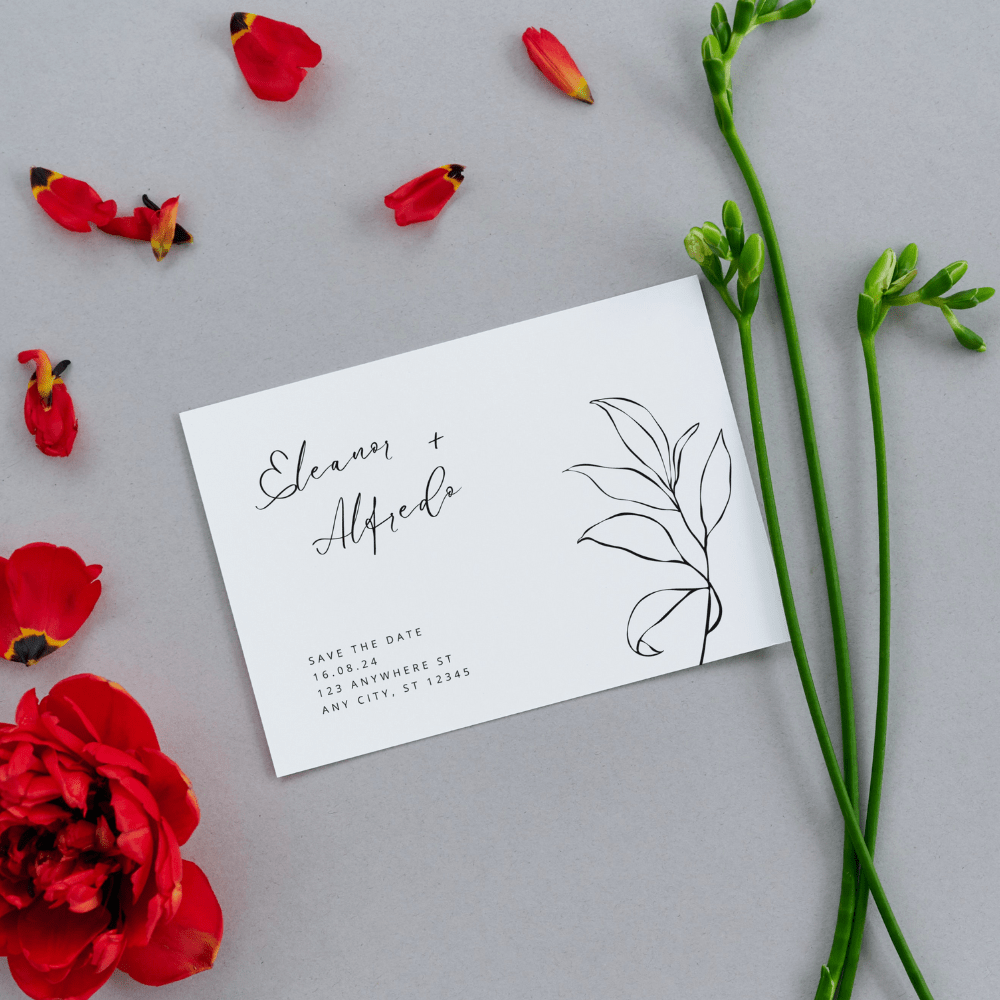
Same day A6 invitations in London
Elegant invites, printed fast, ready today.
Need stylish invitations at short notice? Our same day A6 invitation printing is perfect for professional events and personal occasions, combining speed, quality and presentation in one neat package.
Printed in digital full colour with clean detail and a crisp finish. Whether it’s a product launch, wedding, party or corporate event, choose the card that matches the tone of your occasion.
- 250gsm SilkA thin card with a smooth surface, perfect for modern, minimal designs.
- 300gsm UncoatedA classic textured finish that you can write on, perfect for personal notes or signatures.
- 350gsm Mayfair IvoryAn elegant ivory board with a timeless, tactile finish, a popular choice for weddings and upscale events.
Send it after checkout
- Place your order by 2pm
- Reply to your order email with your PDF, or use WeTransfer for files over 7MB
- We check it by hand and print it the same day
PDFA6 portrait template105 × 148mm with 3mm bleed
PDFA6 landscape template148 × 105mm with 3mm bleed
Need a custom size? Call us before you order, we’re here 9:30am to 6pm.
Good to know
Can I get A6 invitations printed the same day in London?
Yes. Order by 2pm, Monday to Friday, and collect your invitations the same day from our shop at 14 Hendon Lane, Finchley, or choose London van delivery between 6pm and 10pm.
Which card should I choose?
For weddings and upscale events, 350gsm Mayfair Ivory is our most popular choice, with a timeless, elegant feel. For modern corporate events, 250gsm Silk gives a clean, smooth finish. If guests will add handwritten notes, 300gsm Uncoated takes pen beautifully.
What file should I send?
A print ready PDF with 3mm bleed on all sides, ideally in CMYK with images at 300dpi. Download the template above, or follow the Canva, Illustrator or AI guides below.
Can I print double sided invitations?
Yes, every A6 invitation is available single or double sided. Just choose your option above before adding to basket.
Can I have landscape A6 invitations?
Yes, we print A6 in portrait (105 × 148mm) and landscape (148 × 105mm). Use the matching template above when you prepare your artwork.
How do I collect?
We’re at 14 Hendon Lane, Finchley, London N3 1TR. Once your order is ready we’ll let you know and you can collect in person, Monday to Friday, 9:30am to 6pm.
Make your file in Canva, Illustrator or with AI
Follow these steps and your file will be print ready first time. Your size for this product is 85 × 55mm.
- Create a custom size
Click
Create a design, thenCustom size. Change the units tommand enter85by55. - Turn on bleed and margins
Go to
File, thenView settings, and tickShow print bleedandShow margins. - Design to the lines
Stretch backgrounds and images right out to the outer edge. Keep text and logos inside the margin line so nothing gets trimmed.
- Download as PDF Print
Click
Share, thenDownload. ChoosePDF Printand tickCrop marks and bleed. On Canva Pro, set the colour profile toCMYK. - Send it to us
Reply to your order email with the PDF attached, or use WeTransfer for files over 7MB.
Before you download
- Background reaches the outer bleed edge
- Text sits inside the margin line
- Photos look sharp at full size
- Both sides in one file for double sided
On a free Canva account the PDF downloads in RGB. That is fine, we check every file and convert it for print.
- Set up a new document
Go to
File, thenNew. Set width85 mm, height55 mm, bleed3 mmon all sides, colour modeCMYKand raster effects300 ppi. - Add a second artboard for double sided
Set artboards to
2when you create the document, one for the front and one for the back. - Design to the lines
Run backgrounds to the red bleed line. Keep text and logos at least 3mm inside the trim edge.
- Outline fonts and embed images
Select your text and choose
Type, thenCreate Outlines. Embed any placed images and check they are 300 ppi. - Save as a print PDF
Go to
File, thenSave As, and chooseAdobe PDF. Pick theHigh Quality Printpreset, then underMarks and BleedstickUse Document Bleed Settings.
Before you save
- Document is in CMYK
- Bleed is 3mm on every side
- All text is outlined
- Images are embedded at 300 ppi
Not sure about your file? Send it anyway. We check every file by hand before it prints.
- Ask for the right shape
Tell the tool the image is for a
landscape business cardand ask for a3:2ratio. A square image will be cropped to fit. - Leave the words out
AI tools often misspell text. Ask for
no text or letteringand add your words and logo afterwards in Canva, where text prints crisp. - Keep the edges clear
Ask for the main subject in the centre with plain background around it, so nothing important is lost when the print is trimmed.
- Download the full size file
Save the original PNG from the tool, not a screenshot. For this product the image needs to be at least
1075 × 720 pixels. - Finish it in Canva
Upload the image to a Canva design at
85 × 55mm, stretch it to the bleed edge, add your text, then follow the Canva steps to download a PDF Print.
Before you send
- Image fills the shape, not square
- Text added in Canva, spelt correctly
- Nothing important near the edges
- Full size PNG, not a screenshot
Works with ChatGPT, Gemini, Canva Magic Media and similar tools. Only use images you have the right to print.